


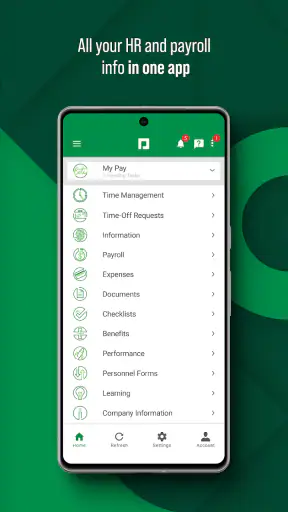
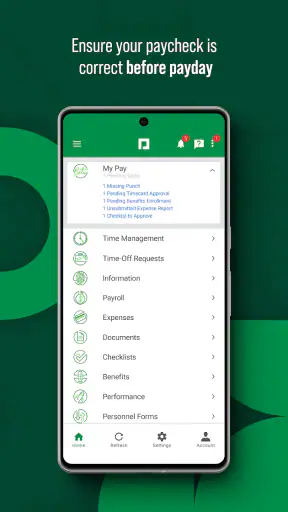
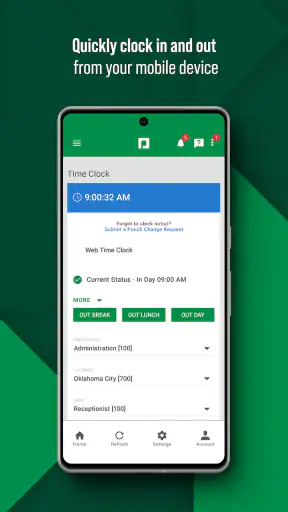
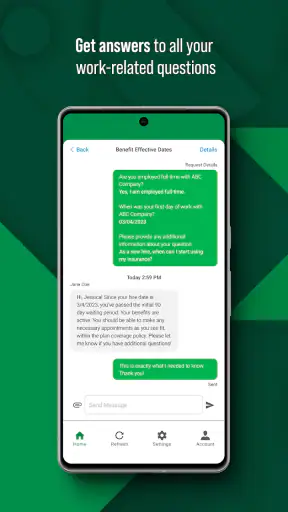
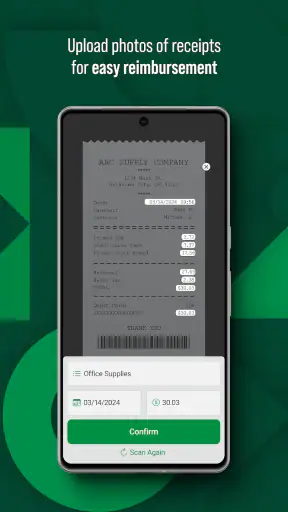
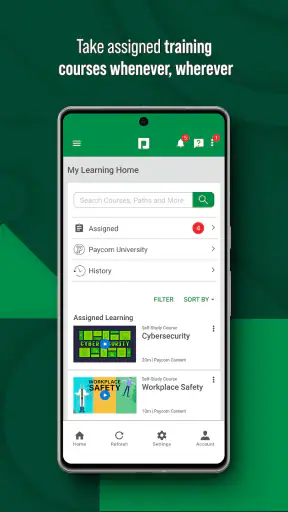
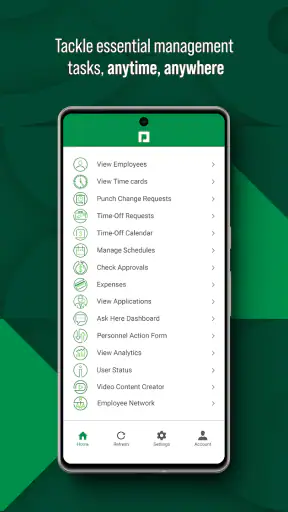
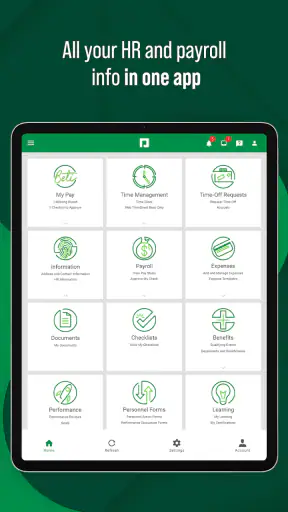
Starting a new payroll and HR app can feel less exciting than installing a fitness tracker or a game, but it can save a surprising amount of time when your work information is spread across emails, payslips, and separate employee tools. Paycom is designed to put that information in one place, and I found its main appeal easy to understand: instead of treating payroll as something you only check when a payment looks wrong, it gives you a more direct way to manage your own work-related details.
Paycom is a free tools app from Paycom Software, Inc. It is aimed at employees and people who need access to their payroll and HR information rather than at casual users looking for a general budgeting or finance app. The app has earned a 4.6 average from roughly 117 thousand ratings, with more than 5 million installs, which suggests that it is already a familiar part of many workplace routines. It is also rated for Everyone, although the usefulness of the app naturally depends on whether your employer uses Paycom.
What to expect before you begin
The first thing I would clarify is that Paycom is not a replacement for a personal banking app, a tax-planning service, or a general employee chat tool. Its purpose is narrower and more practical: helping you manage your own payroll and HR data. That focus is a strength because the app does not need to compete with unrelated tools. When I open it with a specific work question in mind, the experience makes more sense than when I expect it to behave like an all-purpose financial dashboard.
That also means the app is most valuable when your employer has already connected your employee account to the Paycom system. Installing it alone does not create a payroll profile or give you access to workplace records. Before spending time troubleshooting, I would make sure you have the sign-in details or instructions supplied through your workplace. If you are evaluating it for a company that does not use Paycom, this is not the right app to adopt independently just because the download is free.
In everyday use, I see the app as a self-service doorway. Instead of asking a manager or HR contact to answer every small question, you can check your own information first. That is particularly useful when you want to review a payment, confirm that your personal details are current, or deal with an HR task outside normal office hours. The value is not that it makes payroll exciting; it is that it can make routine questions less dependent on someone else’s availability.
The current version is 8.0.8, and the app requires an operating system version of 10 or later. That requirement is worth checking before installation, especially if you keep an older phone for work. On a compatible device, the initial download is only the beginning. The meaningful test is whether you can sign in successfully and locate the information you actually need without having to guess which part of the app controls it.
How I would prepare for the first sign-in
I would begin with three things ready: the workplace login information, access to the email or phone account used for verification if your organization requires it, and a quiet few minutes to read each prompt. Payroll apps are not a good place for rushed tapping. A small mistake in an employee identifier or password can make the app appear broken when the real issue is simply that the account details do not match the employer’s records.
I would also avoid judging the app from the opening screen alone. A payroll system may show little useful information until the account is connected correctly. If the first screen seems sparse, that does not automatically mean the app has no value. The important question is whether the sign-in path leads to your employee information and whether the available sections reflect your workplace setup.
For privacy, I prefer using the app on my own device with a screen lock enabled. Payroll and HR information is personal, so I would not leave an active session open on a shared phone or hand the device to someone else while the app is displaying employee details. This is ordinary digital hygiene, but it matters more here than it does with a casual shopping app.
Turning installation into a useful first result
My recommended first goal is simple: do not try to explore everything immediately. Sign in, find one piece of information you normally need to request from someone else, and confirm that it is understandable. For many users, that might be checking payroll information. For others, the first useful result may be finding an HR record or completing a workplace task that has been waiting for attention.
This small approach makes the setup feel less overwhelming. It also reveals whether the app fits your real routine. If you can reach the relevant information quickly, Paycom starts to feel like a practical shortcut. If you sign in but cannot tell where to go next, the problem may be the way your employer has organized its system rather than the phone app itself, so it is worth checking workplace instructions before assuming something is missing.
A realistic example would be a Friday afternoon when I notice that a payment does not look the way I expected. Instead of sending an immediate message to HR, I would open Paycom, review the available payroll information, and compare it with my own records. If the details answer the question, I have saved a message and avoided waiting. If something still looks unfamiliar, I can contact the right person with a more precise question instead of writing, “My pay seems wrong.” That is a modest benefit, but it is exactly the kind of benefit that makes a work app earn its place on my phone.
Another useful habit is to check information before an important deadline rather than at the last minute. If I need to review an HR detail or confirm that my records look current, doing it earlier gives me time to ask for help if the account does not show what I expect. The app cannot remove every workplace approval or correction process, but it can make the first inspection faster and more informed.
Where new users commonly get confused
The biggest source of confusion is the difference between an app problem and an account or employer problem. Paycom is connected to workplace data, so not every setting is under the app’s control. If a record is outdated, a task is unavailable, or a particular option does not appear, repeatedly reinstalling the app may not solve anything. In that situation, I would first check whether I am using the correct employee account and then ask the employer’s HR or payroll contact what should be available.
It is also easy to expect every employee to see the same screens. Payroll and HR systems are often configured around an organization’s own processes. One person may need the app mainly for payroll information, while another may encounter more HR-related actions. I would therefore treat the visible options as a reflection of my workplace setup, not as a promise that every Paycom user will have an identical experience.
Another point worth remembering is that the app is not a calculator for explaining every payroll result. It can help me inspect my information, but understanding a complicated difference may still require a conversation with payroll. I would use Paycom to gather the facts first, then ask a focused question. That workflow is more efficient than expecting the app to interpret every employment-specific situation in plain language.
Notifications and reminders can also create the wrong expectation if I assume that every important workplace event will appear in one uniform way. I would treat the app as a place to check information, not as the only channel for urgent communication from an employer. Workplace instructions, direct messages, and official HR contacts may still matter, especially when a deadline is involved.
Small habits that make the app more useful
One of my favorite practical habits with an employee app is to check the information before contacting support. That does not mean assuming the displayed record is always correct. It means using the app to narrow the issue. If I can identify the exact item that looks unfamiliar, I can describe it clearly and avoid a long back-and-forth with HR.
I would also keep a personal record of important payroll information rather than relying on memory. Paycom can be the convenient place to review the current details, but a separate personal note or document can help me notice changes over time. I would avoid copying sensitive information into an insecure notes app, though. The useful insight here is not to duplicate everything; it is to maintain a careful reference for the few details I genuinely need to compare.
A second advanced habit is to use the app at the start of a work cycle rather than only after a problem appears. A quick review can help me spot an account issue while there is still time to resolve it. This is especially helpful for people who work irregular schedules, travel, or cannot easily reach an HR office during standard hours.
Finally, I would separate “I cannot find it” from “it is not available to me.” Search habits and menu labels can vary by workplace configuration, so I would look through the relevant payroll or HR area calmly before concluding that a function is absent. If the app still does not show what I need, that is the moment to ask the employer for guidance. This two-step approach prevents wasted time and avoids making unsupported assumptions about the account.
How Paycom compares with the usual alternatives
Compared with asking HR by email, Paycom gives me a faster first check and lets me look at my own information when it suits me. Email remains better when I need an explanation, a correction, or a decision from a person. I would not treat the app as a replacement for that relationship; I would use it to make those conversations more specific.
Compared with a banking app, Paycom is closer to the source of workplace payroll information, while the banking app is better for seeing money after it reaches my account and for managing spending. The two tools answer different questions. A bank balance can tell me what arrived, but it may not explain the employment record behind that amount. Paycom is useful precisely because it belongs to the payroll and HR side of the process.
Compared with a generic document folder, it has the advantage of being tied to an employee account rather than relying on me to manually save and organize every file. The trade-off is that I have less control over how the workplace system presents information. A folder can be messy but flexible; Paycom can be more direct when the employer’s setup matches what I need.
Compared with a desktop browser, the mobile app is more convenient for quick checks, particularly when I am away from a computer. A browser may still feel better for longer reading or for tasks that involve many fields. My preference would be to use the phone for short, targeted actions and a larger screen when I need to study several details at once.
Who will benefit most, and who should skip it
I would recommend Paycom to employees whose workplace already uses it and who want a direct way to inspect payroll or HR information without depending on an office visit. It is also a good fit for people who prefer handling routine tasks themselves, work varied hours, or often need to check something when the person who normally helps them is unavailable.
I would be more cautious about recommending it to someone who expects a personal finance app. If your main goal is budgeting, tracking subscriptions, monitoring investments, or comparing bank accounts, Paycom is not designed around those needs. A banking or budgeting app will be the better choice for that kind of overview.
I would also skip it if my employer does not use Paycom. The free price makes trying it low-risk, but there is no reason to keep an unrelated employee app installed without an account connected to a participating workplace. Likewise, if you need detailed human guidance for every payroll question, the app may be useful as a reference but will not replace your HR contact.
My next-step routine after setup
Once I had signed in and completed one meaningful check, I would not spend an hour exploring every corner. I would return when I have a real reason: reviewing payroll information, checking an HR detail, or preparing a clear question for my employer. That keeps the app practical instead of turning it into another notification-heavy tool that I open without a purpose.
If the first action works, I would make a note of the path I took so the next visit is quicker. If it does not work, I would record the exact message or missing information, confirm that I am using the correct workplace account, and then contact the appropriate payroll or HR person. That sequence is more useful than repeatedly guessing at passwords or reinstalling the application.
Paycom’s strongest quality is its direct connection to a task people often need to handle but rarely enjoy handling. It brings payroll and HR information closer to the employee and can turn a vague concern into something I can inspect myself. Its limitations are just as important: access depends on the employer, the available experience can vary by workplace, and complicated questions may still require a human answer.
After using it as a focused self-service tool rather than expecting a complete financial assistant, I find the app easy to recommend to the right audience. For employees with a connected Paycom account, the best first win is simple: sign in, locate one relevant record, and use what you learn to make your next payroll or HR question clearer. That is where this free tools app earns its value.
Paycom is available for users aged Everyone, and its developer is Paycom Software, Inc. The app first appeared on May 30, 2017, and its current version is 8.0.8 for devices running operating system version 10 or later. For a first-time user, those details matter less than the practical test: whether your employer’s account is ready and whether the app helps you complete that first useful check without unnecessary friction.


